Documentation
Getting Started
From nothing to a verified connection in a couple of minutes.
Try it on the demo hosts
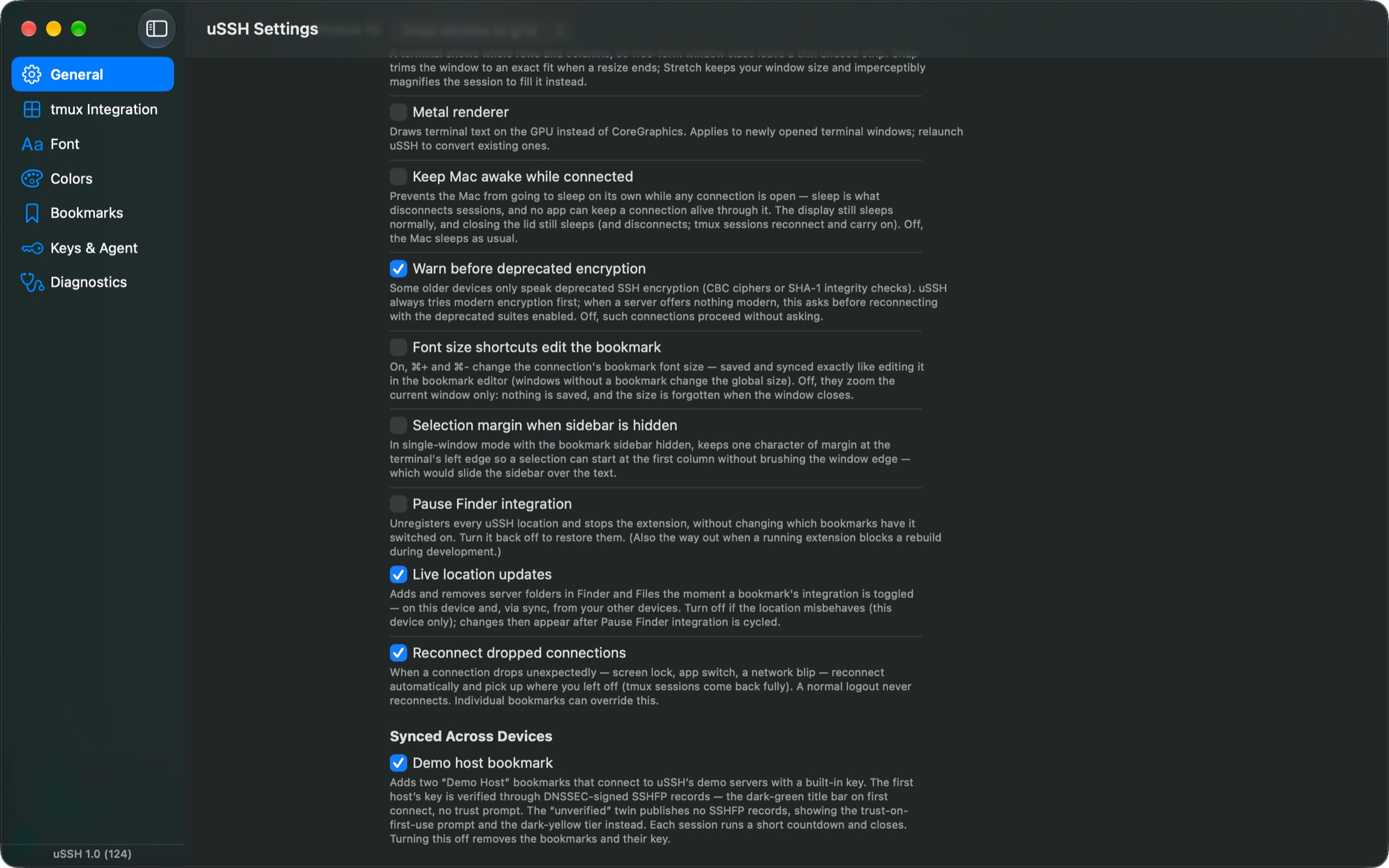
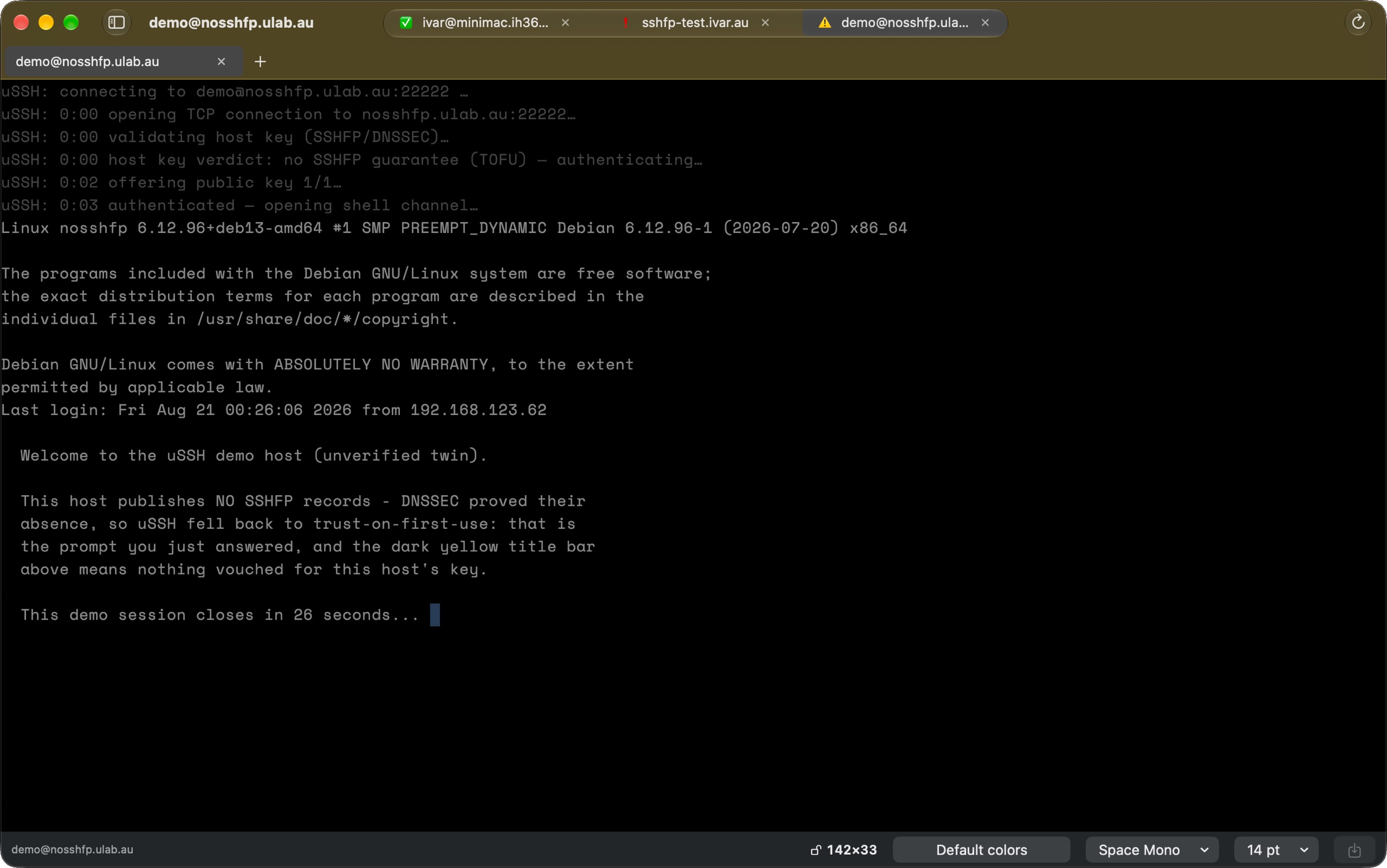
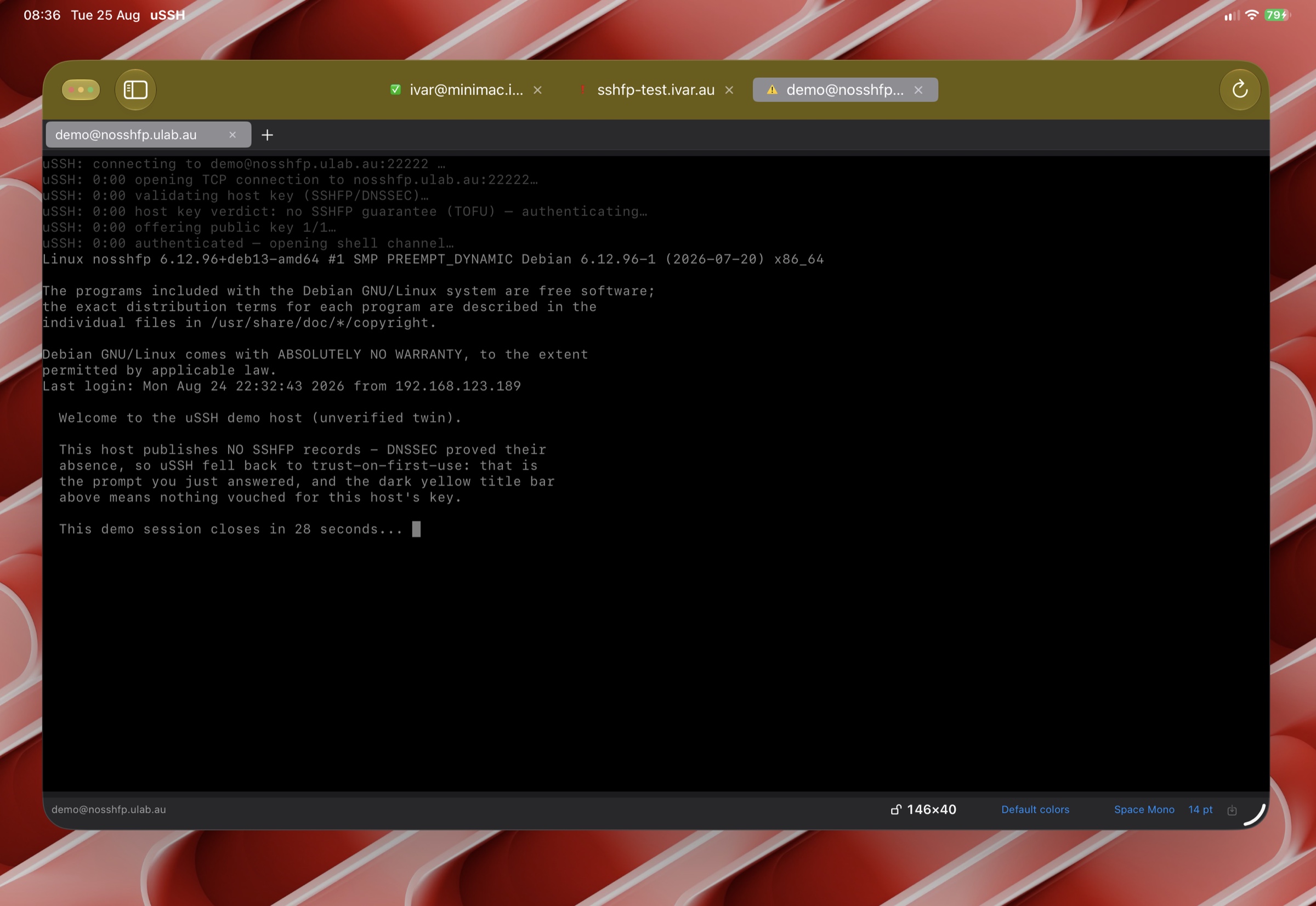
Before pointing uSSH at your own servers, flip on Settings → General → Demo host bookmark. It adds two bookmarks that connect to uSSH’s demonstration servers with a built-in key — no account, nothing stored about you, and each session runs a short countdown and closes.
- The first demo host publishes DNSSEC-signed SSHFP records. Connecting shows the dark-green title bar and no trust prompt: uSSH proved the host’s key from the DNS root down before trusting it.
- Its “unverified” twin publishes no SSHFP records, so you get the classic trust-on-first-use prompt and the dark-yellow tier instead — the experience most hosts on the internet still give you.
Turning the toggle off removes both bookmarks and their key again.
Your first bookmark
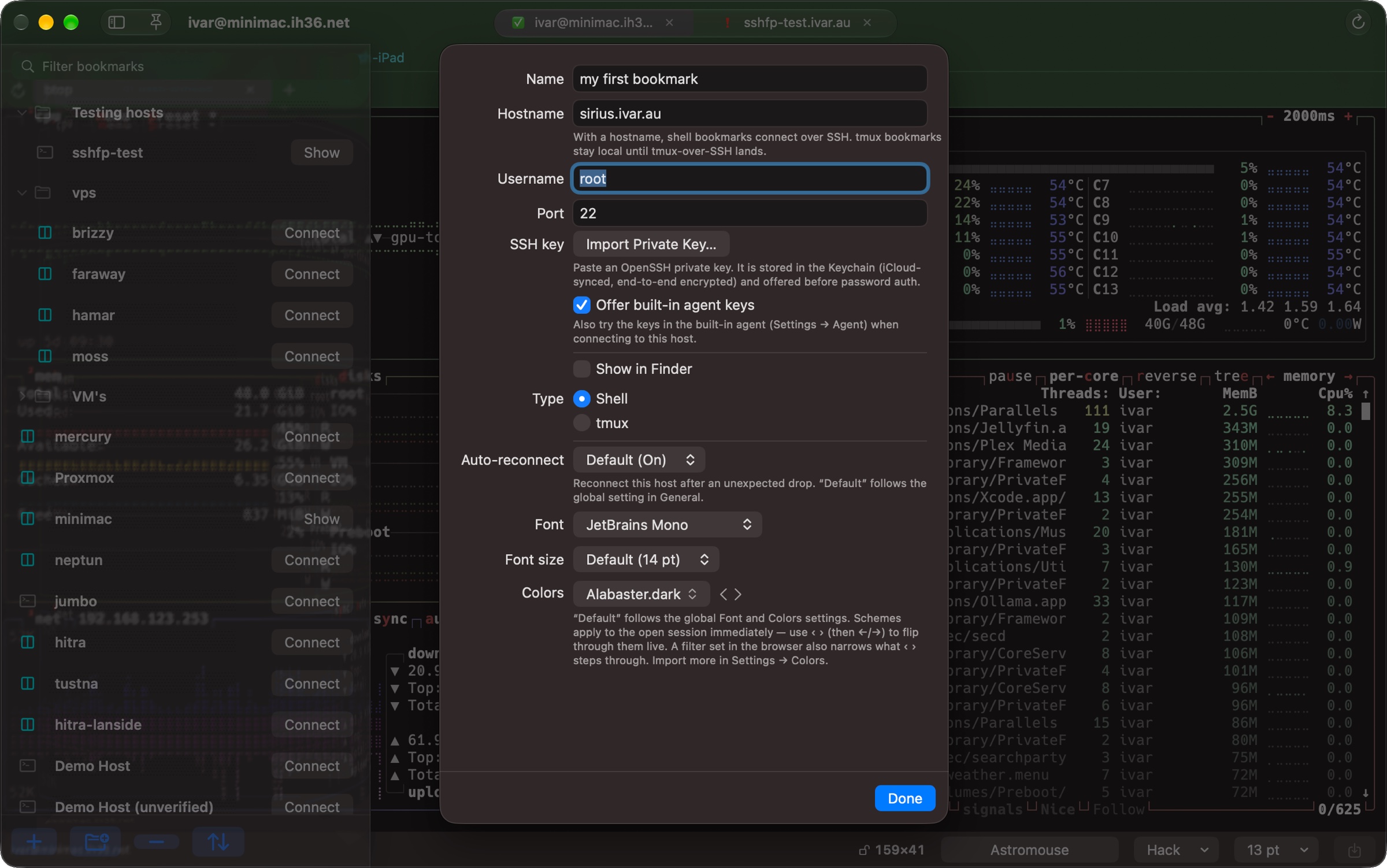
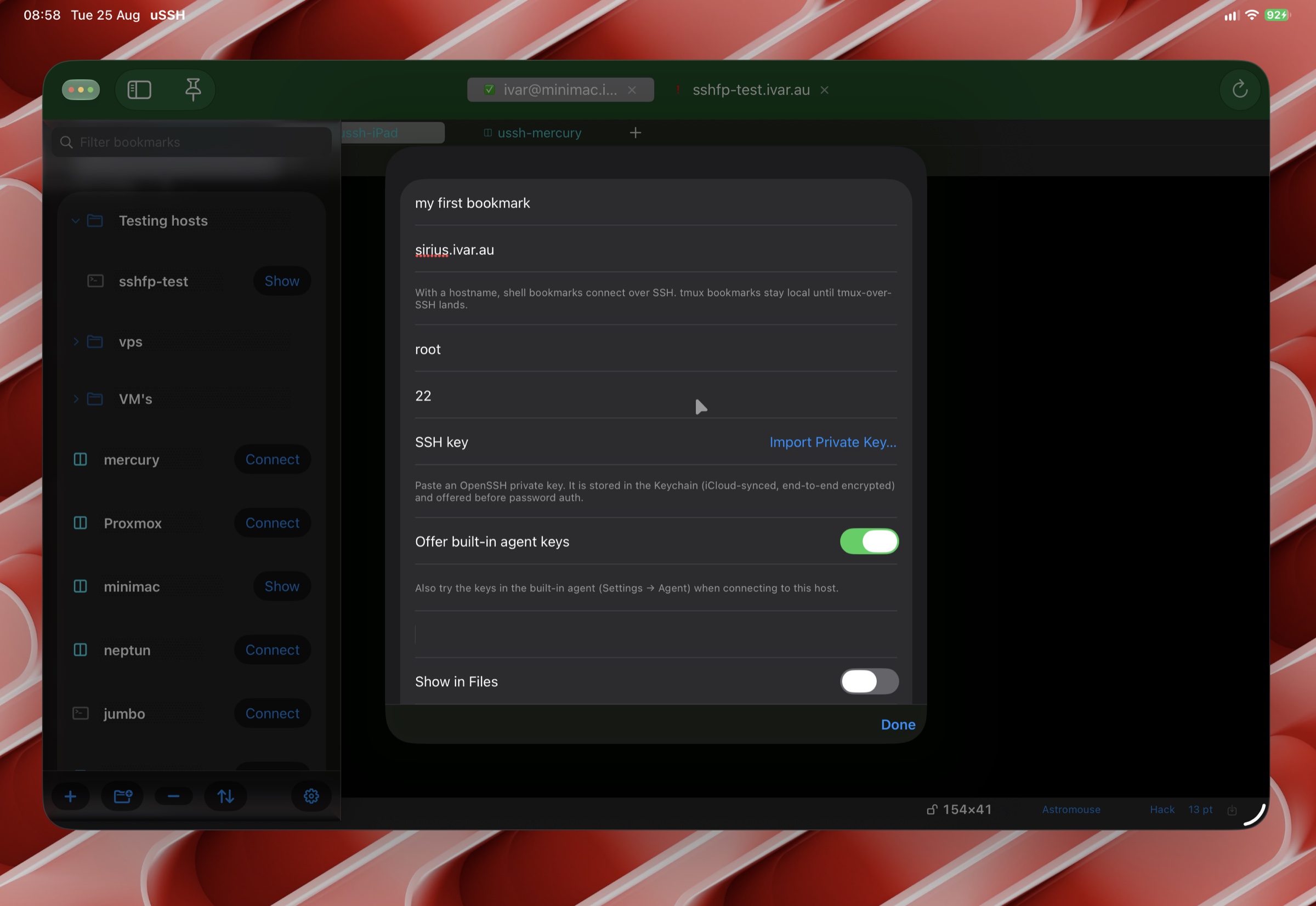
- Press the ⊕ button in the bookmark pane and choose SSH.
- Enter the hostname and username. The port defaults to 22.
- For authentication, paste an OpenSSH private key (it goes straight into the Keychain — iCloud-synced, end-to-end encrypted) or just connect and type your password, ticking remember at the prompt if you want it stored. The Keys & Authentication page covers agents and relays.
- Connect. What the title bar color means is covered next — and in depth on the Host Verification page.
The trust colors
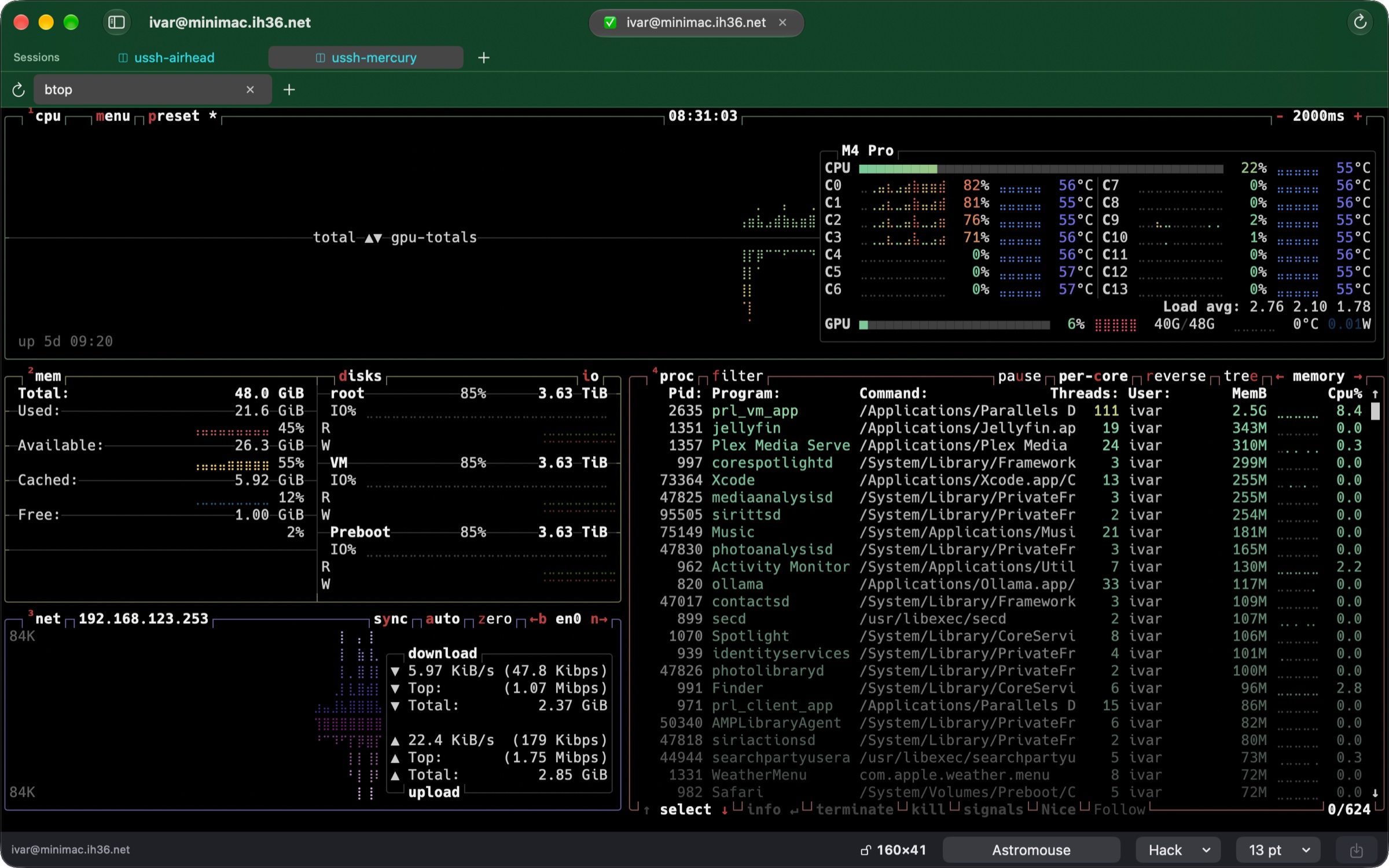
- Dark green — the host’s key matched an SSHFP record that uSSH’s built-in resolver validated with DNSSEC, from the root zone down. There is nothing to ask you: the server operator published the fingerprint, and cryptography vouched for it.
- Dark yellow — no validated SSHFP record exists, so uSSH pinned the host’s key the first time you accepted it and checks against that pin ever after. This is ordinary SSH behavior, made visible.
- Red — the host presented a key that contradicts its DNSSEC-validated SSHFP records. uSSH refuses to connect; there is no override. Most often the server’s keys were rotated without updating DNS — but an interception would look exactly the same.
- Click or tap the verification mark any time to see the full evidence trail — every DNS record checked, every signature validated, including the proofs that a record is genuinely absent.
Where things live
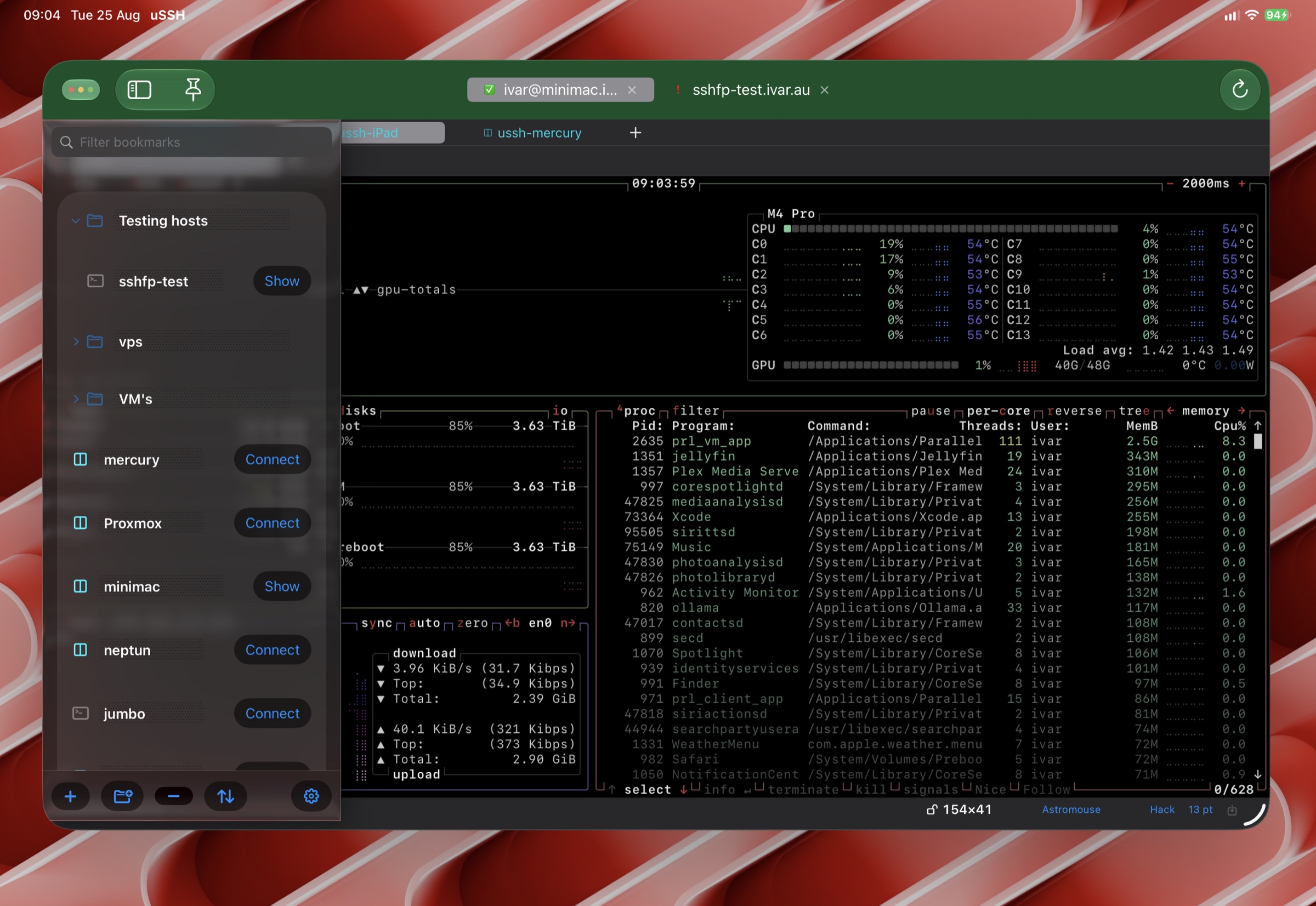
- Bookmarks and settings are stored on the device, and sync between your devices through your own iCloud account if Store settings in iCloud is on.
- Bookmarks travel as CSV too — export and import in the same format Secure ShellFish uses, so a bookmark list moves between the two apps, or into a spreadsheet, in one step. Keys and passwords are never part of the file.
- Keys and passwords live in the system Keychain, guarded by Face ID, Touch ID, or your passcode, and sync via iCloud Keychain — end-to-end encrypted, unreadable to anyone but your devices.
- Nothing goes to us. uSSH has no accounts and no servers of its own (beyond the optional demo hosts) — see the Privacy Policy.