
tmux Integration
With tmux mode on, uSSH speaks tmux’s control protocol: remote windows and panes become native tabs, your session survives anything, and it follows you between your Mac and iPad.
What tmux mode does
Enable tmux on a bookmark and uSSH attaches in control mode instead of drawing tmux’s text UI inside a terminal. Every tmux window becomes a native tab; panes are real terminal views; ⌘T (or the ⊕ button) opens a new tmux window. No prefix-key gymnastics — tmux’s power with the app’s own windows, tabs, and keyboard.
- Disconnects don’t kill anything. Drop the connection — sleep the Mac, ride through a tunnel — and the session keeps running on the server. Reconnect and every window is back, scrollback included.
- New windows inherit your directory (Settings toggle): a new tmux window opens its shell in the directory of the pane you’re looking at.
- If tmux isn’t on the server’s default PATH, set the full path in the bookmark — Homebrew’s locations are already tried automatically.
- Works with tmux 3.1 and later — including the packages that ship on small devices like OpenWrt routers.
Finding your way around
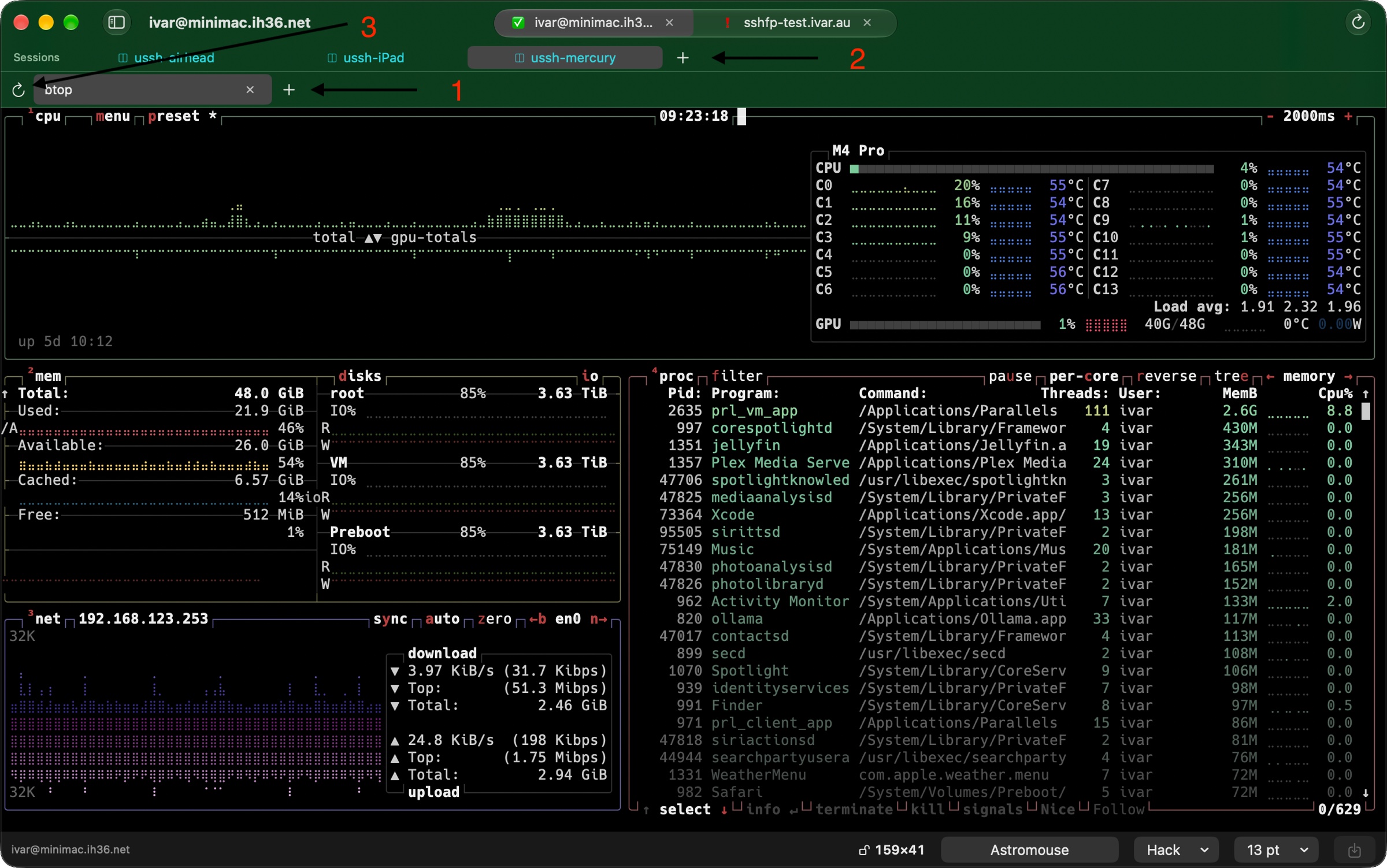
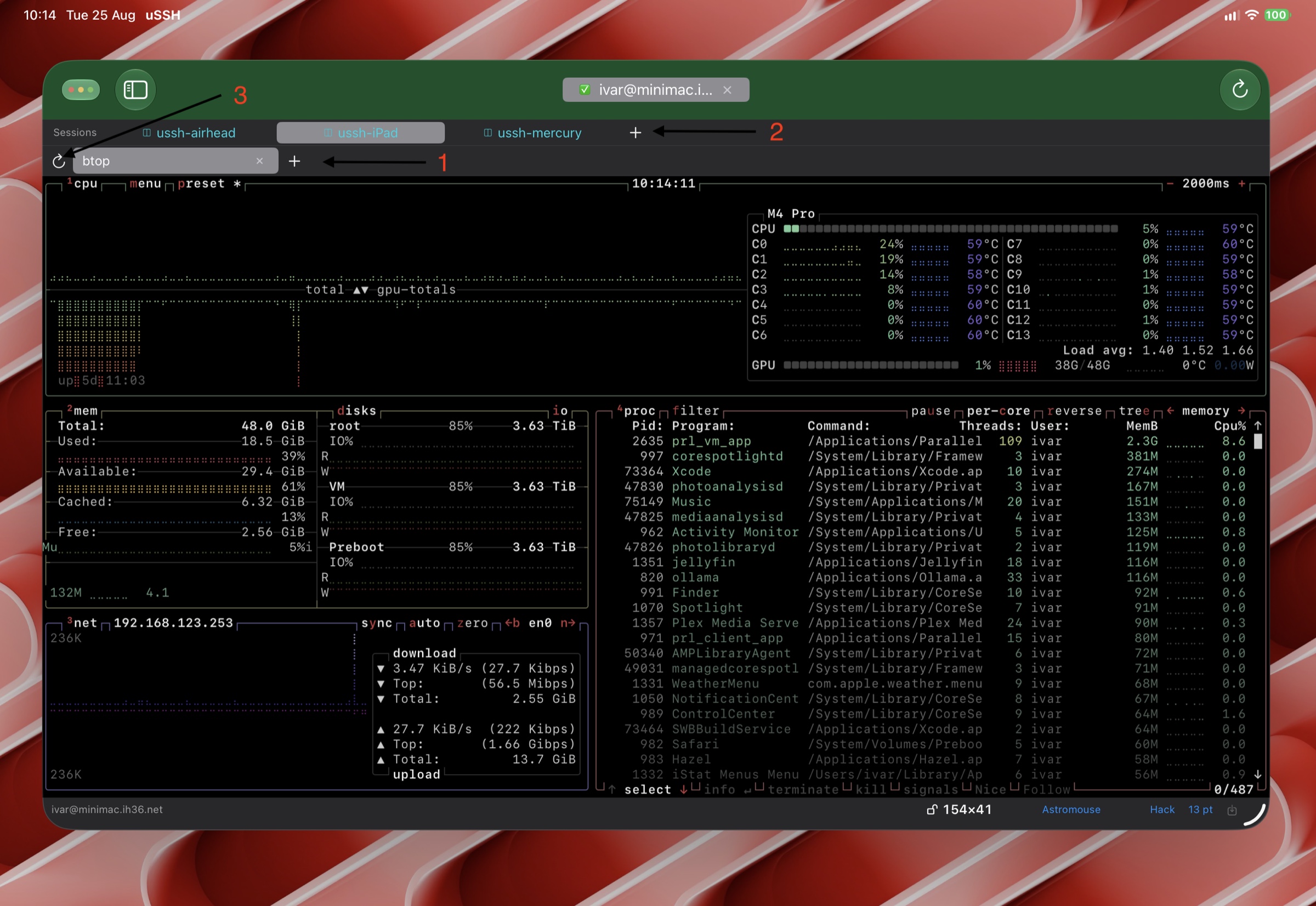
A tmux bookmark shows two rows of tabs above the terminal:
- Windows (lower row) — the current session’s windows. Its ⊕ (or ⌘T) opens a new window — 1 in the screenshots.
- Sessions (upper row) — one tab per tmux session on that host. Its ⊕ starts a new session — 2. When only one session exists the row hides itself to give the terminal the height back; the new-session command then lives on the ↻ reconnect button in the toolbar.
- The ↻ at the left of the window row — 3 — forces a full tmux redraw: the escape hatch for a screen that has been garbled by a program that lost track of the terminal.
Sessions that follow you
The session a bookmark attaches to is named per-device (by default, after the device itself), so two machines never fight over one window’s size until you deliberately share a session — set the same session name on both, or leave one blank to follow the name set on your other devices.
When two devices do share a session, uSSH choreographs it instead of letting them wrestle:
- The layout follows whoever is typing. Start typing (or click) on one machine and the session adopts that machine’s window size; the other device smoothly scales its view to fit — everything stays readable, nothing reflows under your cursor.
- Walk to the other machine, type, and the roles swap. Mac to iPad and back, mid-command.
Sizing, stretching, and the grid lock
How uSSH fills a window that isn’t a whole number of cells, and the status-bar grid lock that freezes the character grid for presentations, are features of the terminal itself and apply to tmux and plain shell sessions alike — see The Terminal → Windows and sizing.
When several devices attach to the same session, tmux can only give the shared window one size, and without a rule the smallest client wins and everyone else gets a cropped view. uSSH adds a size lock with an owner: the first device to press the lock in the status bar owns the window’s rows and columns, and every other device shows a yellow lock and renders that grid scaled to its own window instead of fighting over it. Unlocking hands the size back, and the next device to type or lock takes it. The lock rides on a tmux window option, so it survives reconnects and follows the session, not the app.