Keys & Authentication
Keys stay in the Keychain — or on the Mac that already holds them. uSSH gives you four ways to authenticate, from simplest to most locked-down.
Bookmark keys
The simplest path: paste an OpenSSH private key into a bookmark. The key is stored in the system Keychain — iCloud-synced with end-to-end encryption, so it follows you to your other devices without ever existing in plaintext outside them — and is offered before password authentication whenever that bookmark connects. Ed25519, ECDSA (P-256/384/521), and RSA keys are supported; RSA keys are always signed with modern rsa-sha2, never legacy SHA-1.
Passphrase-protected keys are imported with their passphrase: uSSH asks for it once, decrypts the key on the device, and stores it in the Keychain without the passphrase — the Keychain’s own protection (Face ID, Touch ID, passcode, end-to-end encrypted sync) takes over from there, which is also what lets the Finder/Files integration use the key without prompting. Keys encrypted with chacha20-poly1305 (an explicit -Z choice at creation; not the default) can’t be decrypted yet — re-encrypt a copy with ssh-keygen -p -Z aes256-ctr -f keyfile. If you would rather the passphrase never leave your Mac, the Key-Agent Relay below uses the key where it already lives.
Removing a bookmark key deletes it from the Keychain and detaches it from the bookmark.
The built-in agent
A key attached to one bookmark can be promoted with “Share this key with the built-in agent”: it then appears in Settings → Agent and is offered to every host, not just its own bookmark. No copy is made — the agent references the same Keychain item. Bookmarks can also opt in per-host with “Also try the keys in the built-in agent”, so one good key can serve a whole fleet of bookmarks.
Stored passwords
Tick remember at any password prompt and the password is saved to the Keychain for that bookmark. On later connections it is offered once, silently, before any interactive prompt — if the server rejects it, you are asked normally. Stored passwords are listed and removable in Settings → Keys.
The Key-Agent Relay
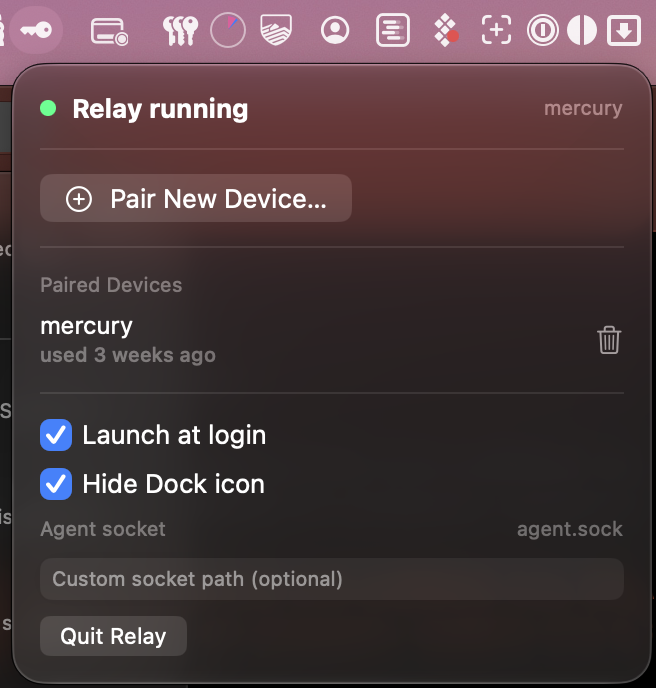
The most locked-down option: use SSH keys held by a Mac’s ssh-agent — including agents backed by 1Password or Secretive — without copying the keys anywhere. Run the free uSSH Agent Relay companion app on the Mac, click Pair New Device… there, and enter the 6-digit code on your iPad or other Mac.
- Keys never leave the Mac that holds them — only signatures cross your local network, over an encrypted, paired channel.
- Agents that confirm each use keep doing so: a 1Password-backed key still prompts on the Mac for every signature, so your iPad can never sign silently.
- The relay is optional and entirely local — no uSSH servers are involved. macOS may ask to allow uSSH on the Local Network; the relay needs that permission to find and reach the paired Mac.
Download
Download uSSH Relay 1.0 for Mac
Free. Requires macOS 14 or later. Signed with a Developer ID and notarized by Apple — unzip, drag uSSH Relay to Applications, and open it; it appears as a key in the menu bar. Tick Launch at login so your keys are always reachable. SHA-256 of the archive: f2a824ef073473aafcca9554d0bca9a2d8e0a5d563ce80981ebe8fbf51a4dd06
Face ID, Touch ID, and the Keychain
Everything uSSH stores — keys and passwords alike — lives in the system Keychain under your device’s protection: Face ID, Touch ID, or passcode. There is no uSSH key format, no export file, and no key material in bookmarks or iCloud Key-Value storage. Deleting the app leaves nothing readable behind.
Older servers and legacy ciphers
uSSH always negotiates modern encryption first. Some appliances and older network gear only speak deprecated suites (CBC ciphers, SHA-1 integrity); when a server offers nothing modern, uSSH asks before reconnecting with the deprecated suites enabled, so you never downgrade without knowing. The prompt can be disabled in Settings if you administer such devices daily.