
The Terminal
The part you stare at all day. Built to be fast, exact, and unfussy — on Mac, iPhone, and iPad alike.
Rendering
uSSH draws terminal text on the GPU with Metal by default — smooth scrolling and crisp text even with a busy TUI repainting at full tilt. It can be switched back to CoreGraphics in Settings → General; the change applies to newly opened terminal windows.
Server output is flood-controlled: a runaway cat of a huge file can’t starve the app, and Ctrl-C stays responsive throughout.
The status bar
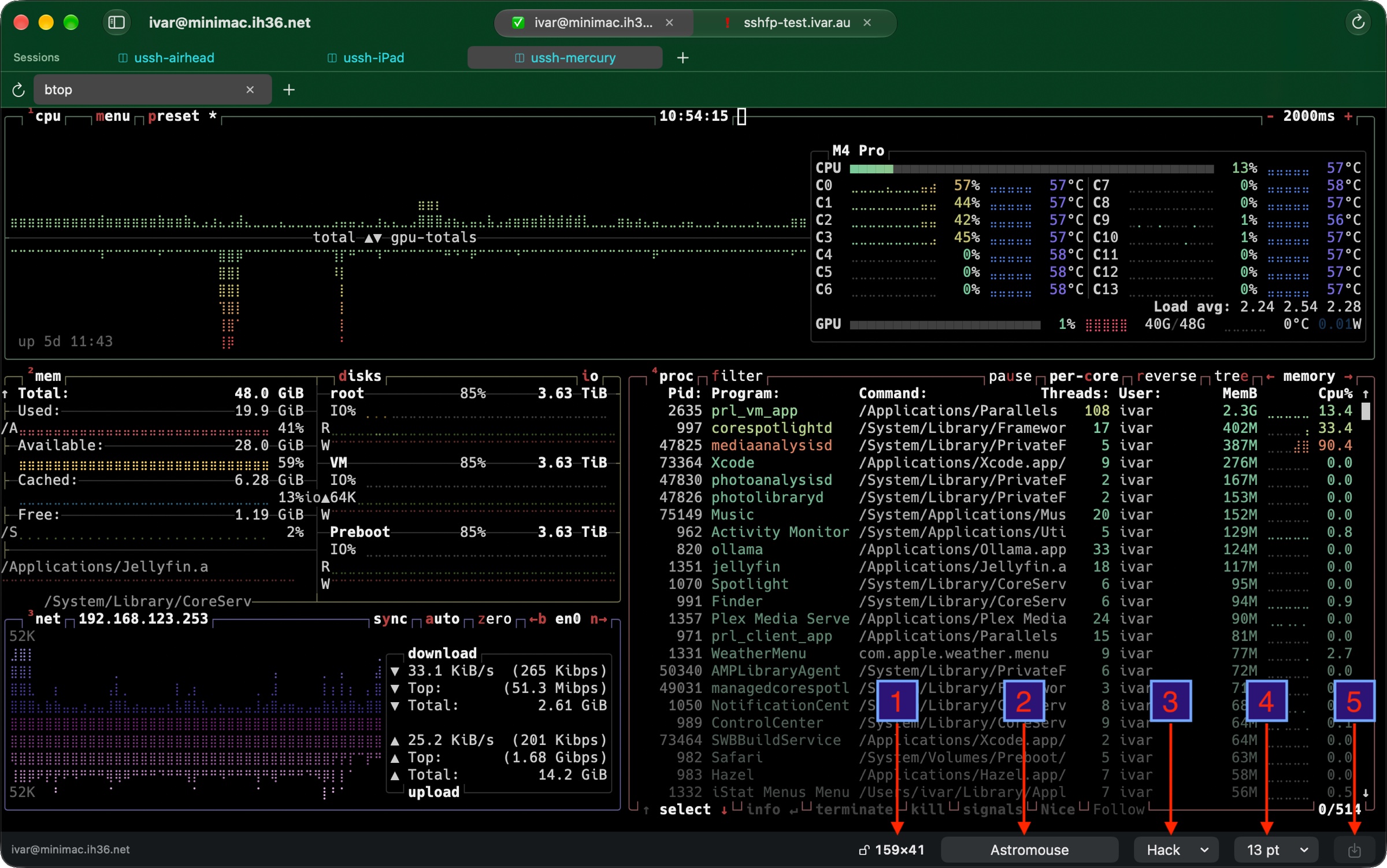
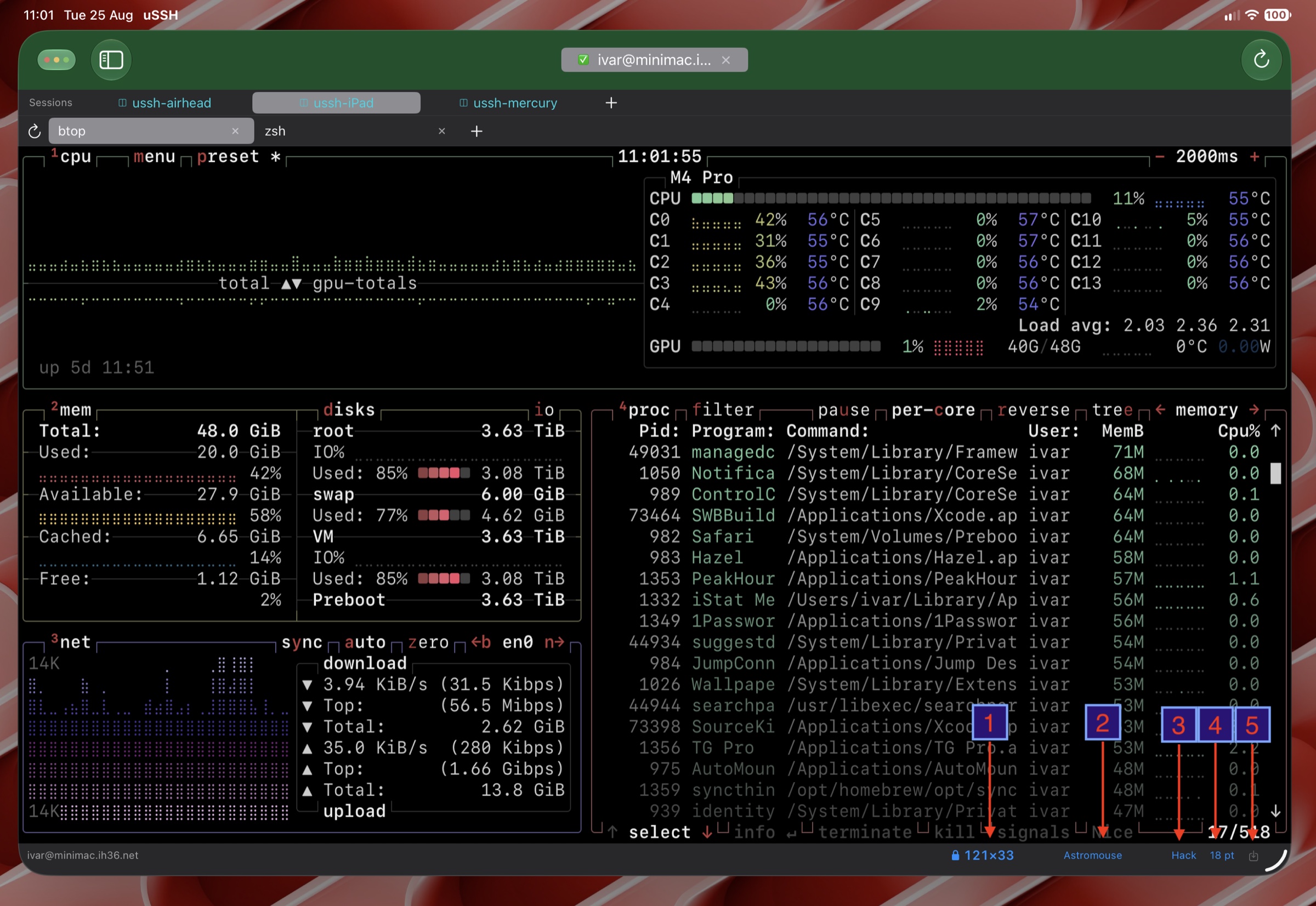
The strip under every terminal is the per-window control panel. From left to right, after the connection name:
- 1 — columns × rows. The live size of the character grid. Click it to lock the grid (a padlock appears, as in the iPad shot); click again to unlock. Details under Windows and sizing below.
- 2 — color scheme. The scheme this window is using. Click to open the scheme browser, or use the ‹ › arrows to flip through schemes live on the running session.
- 3 — font and 4 — size. Pick either here, or change the size from the keyboard with ⌘+ and ⌘-.
- 5 — save to bookmark. Whether a change made here sticks depends on one setting: Settings → General → Font size shortcuts edit the bookmark. With it on, every pick in the status bar and every ⌘+/⌘- is written to the bookmark immediately, synced to your other devices, and this button stays greyed out because there is nothing left to save. With it off, changes are temporary and apply to this window only — forgotten when the window closes — and this button lights up whenever the window’s look differs from its bookmark, so you can promote the look you’ve arrived at with one click.
Colors and fonts
- Hundreds of color schemes built in — browse them in Settings → Colors, or flip through them live on an open session with the ‹ › control and arrow keys.
- Import your own: files or whole folders in iTerm2 (.itermcolors), Windows Terminal JSON, Xresources, kitty, ghostty, or alacritty formats.
- Import fonts on iPad and iPhone: TrueType and OpenType files from the Files app become terminal fonts, with a preview rendered in the font itself. Sizes go down to 6 pt for dense layouts on a small screen.
- Schemes and fonts can be set globally or per bookmark. Whether status-bar picks and ⌘+/⌘- edit the bookmark or just this window is the Font size shortcuts edit the bookmark toggle — see The status bar above.
Windows and sizing
- Stretch text to fill (default) — free-form window sizes are filled exactly by imperceptibly magnifying the session, so there is never a dead strip at the edge. Snap window to grid trims the window to a whole-cell fit instead.
- Grid lock — the status bar shows the terminal’s columns × rows; click it to freeze the grid. The character grid then stays fixed while window resizes stretch the rendered text instead of reflowing it. Made for screen sharing and presentations: your audience sees a stable, scaled-up terminal no matter how you resize, and TUI layouts never rewrap mid-demo. Click again to unlock.
- Auto-hide tab bars gives the terminal the full window height; the bars overlay on demand at the top edge and slip away again.
- On iPad, uSSH supports multiple windows — two sessions side by side in Split View, or one per Stage Manager window.
Staying connected
- Reconnect dropped connections — an unexpected drop reconnects automatically, globally or per bookmark. With tmux mode, you resume exactly where you were.
- Keep Mac awake while connected — sleep is what kills connections, so this optional setting prevents idle sleep while any connection is open. The display still sleeps; closing the lid still sleeps (tmux sessions reconnect and carry on).
- ⌘Q can be set to close connections only, so a reflexive quit never takes the app down mid-session.
Paste safety
Pasting into a terminal is where accidents happen — a stray multi-line block, or a command dressed up to look harmless while hidden or direction-flipping characters make what runs differ from what you saw (“paste-jacking”). uSSH reviews the clipboard before it reaches the shell, in two layers you control under Settings → General:
- Right-click pastes — a secondary click pastes the clipboard into the terminal, the X11 way; with it off, the click shows a small menu with Paste and Copy instead. Either way the paste goes through the same checks as ⌘V.
- Check pastes before sending — instant dangerous-pattern rules (recursive deletes of broad paths, curl-pipe-shell, writes to disk devices, force-pushes, lockouts…) plus a flag for hidden and direction-flipping characters. Fast, but pattern rules only catch what they’re written to recognize.
- Ask the on-device model to explain — Apple’s on-device language model reads the commands the way you would, catching obfuscation the patterns miss and adding a plain-language note about what could go wrong. It runs entirely on your device and can raise a warning but never overrides the rules. The extra read takes a beat.
- Don’t interrupt for ordinary pastes — drops the confirmation sheet for everyday pastes while both layers keep running in the background, so you’re stopped only when something actually looks risky.
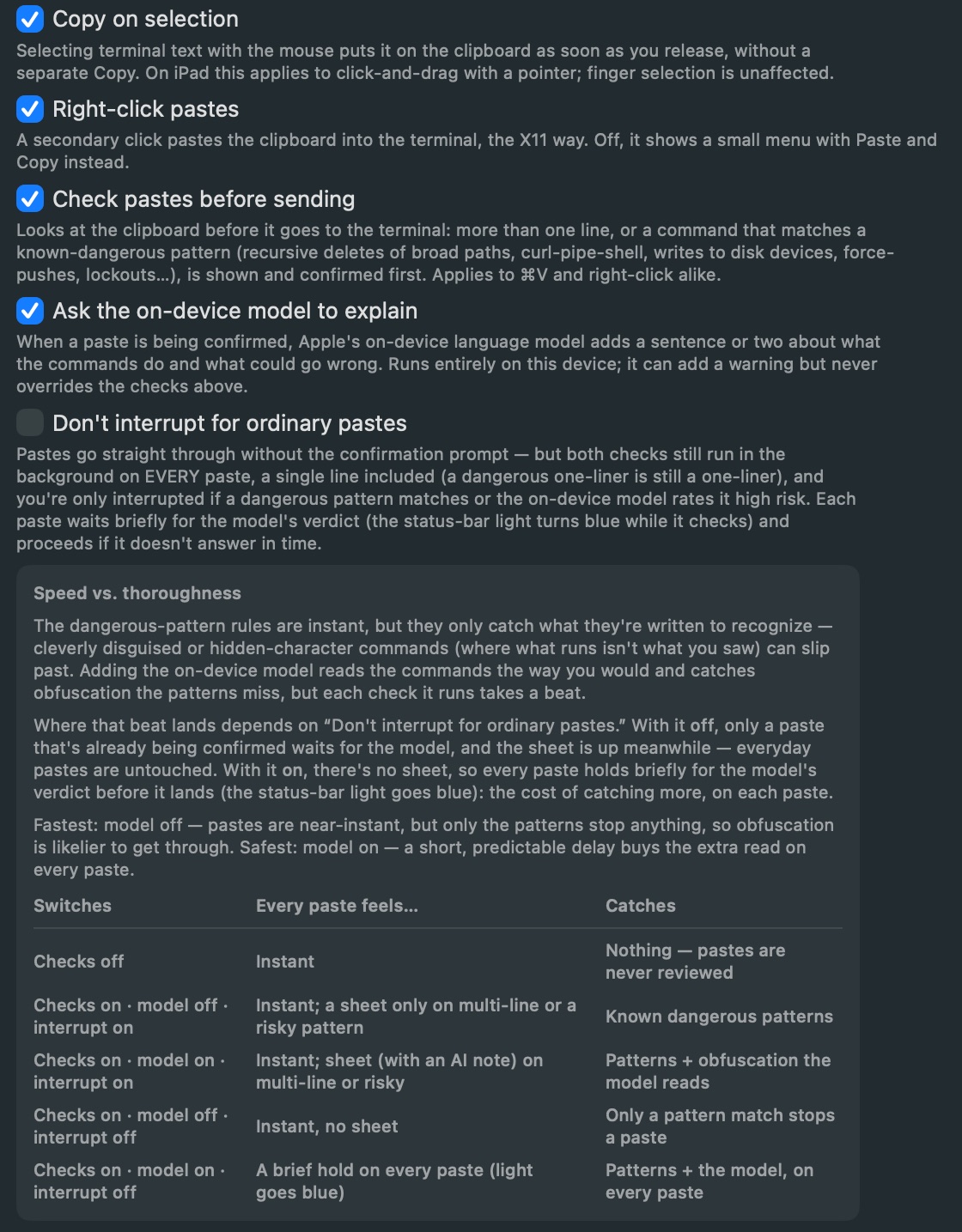
The two axes — how thorough, and whether ordinary pastes are held — combine like this:
| Switches | Every paste feels… | Catches |
|---|---|---|
| Checks off | Instant | Nothing — pastes are never reviewed |
| Checks on · model off · interrupt on | Instant; a sheet only on multi-line or a risky pattern | Known dangerous patterns |
| Checks on · model on · interrupt on | Instant; sheet (with an AI note) on multi-line or risky | Patterns + obfuscation the model reads |
| Checks on · model off · interrupt off | Instant, no sheet | Only a pattern match stops a paste |
| Checks on · model on · interrupt off | A brief hold on every paste (the status light goes blue) | Patterns + the model, on every paste |
In short: the on-device model is the thorough choice and costs a short, predictable delay; leaving it off keeps pastes near-instant but leans entirely on the pattern rules, which cleverly disguised commands are likelier to slip past. The delay only lands on every paste when you’ve also turned off the interruption sheet — otherwise the model reads in the background while the sheet is already up.
Small things that add up
- Copy on selection — selected text lands on the clipboard the moment you release.
- Selecting inside mouse-aware programs — when an app such as btop, htop, or vim turns on mouse reporting, uSSH hands your clicks and drags to the program so its own selection and navigation work. To take the mouse back for a moment, hold Shift while dragging: uSSH makes a normal text selection instead, exactly as xterm has always done. Works with a pointer on iPad too.
- Block selection — hold ⌥ (Option) while dragging on the Mac to select a rectangle instead of lines: the way to copy one column out of btop or a tmux pane without the neighbouring panel bleeding in. Holding ⇧ (Shift) while dragging selects normally even inside a program that has taken the mouse.
- Find in scrollback — ⌘F opens a find bar over the scrollback of a shell tab or a tmux pane, on Mac and iPad. Matches step with Return and Shift-Return; scrolling, copying, clicking into the terminal, or Esc ends it and returns you to the bottom. In a tmux pane the search can escalate into the pane’s full server-side history when the local scrollback runs out.
- Scrollback restore — reconnected tmux sessions come back with their history, not a blank screen.
- Diagnostics you can actually use — Settings → Diagnostics can write a categorized debug log (connections, DNS validation, tmux traffic) for troubleshooting with support. Terminal content is never logged — output appears only as byte counts.